
1. Pick cards and counts
- In "Decks", choose the game and create a new deck.
- Pick the cards to use and set how many of each.
- For games with several piles, switch between the pile tabs to add cards.
- Go to "Confirm" and name the deck.
The "Red Flame Deck" in the example has 30 cards. Match the structure and counts you set for your own game.
2. Check the board and starting positions
If the game has a default board and starting positions, just tap "Save". To set them for this deck, open "Advanced" and choose the board and where each pile goes.
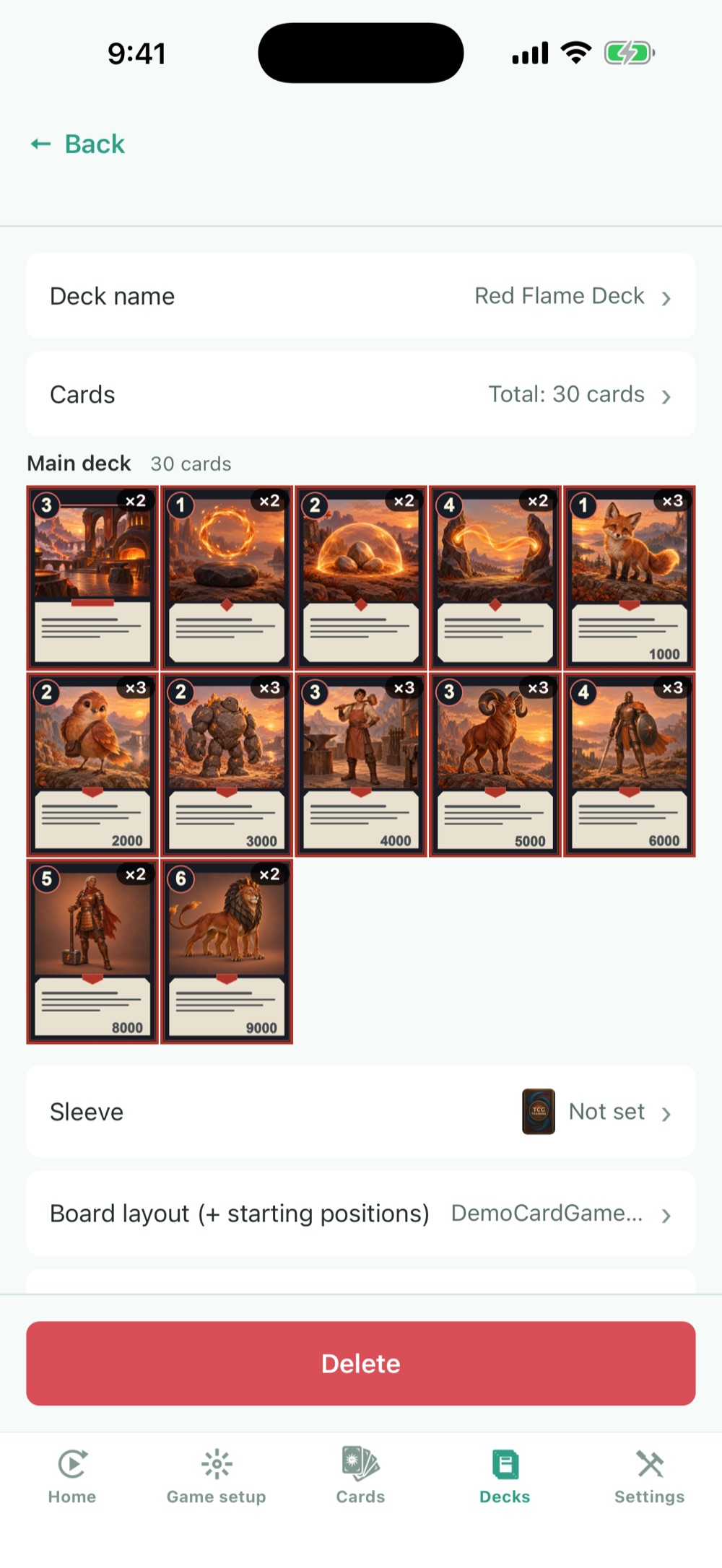
Tap an image to enlarge it. The screens are demos for explanation.
3. Edit a saved deck
From the deck's "Details", you can change its name, cards, board and starting positions. To swap cards only, change them in the card editor and save.
If the deck has its own settings saved, those are used even after you change the game's defaults. If the board is not what you expected, check the deck details.
4. Choose how to play
In Solo Play, you can pick the same deck for yourself and the opponent. To play with someone far away, go to playing online.