1. Get ready with your opponent
Set up a call or another way to talk with your opponent, and agree on the game you will play. There is no random matchmaking: you meet at the same table with a room code.
If you use your own deck, register it first. You can also borrow a deck your opponent lends, for that table only. Players confirm card effects and how the game proceeds between themselves.
2. Create or join a table
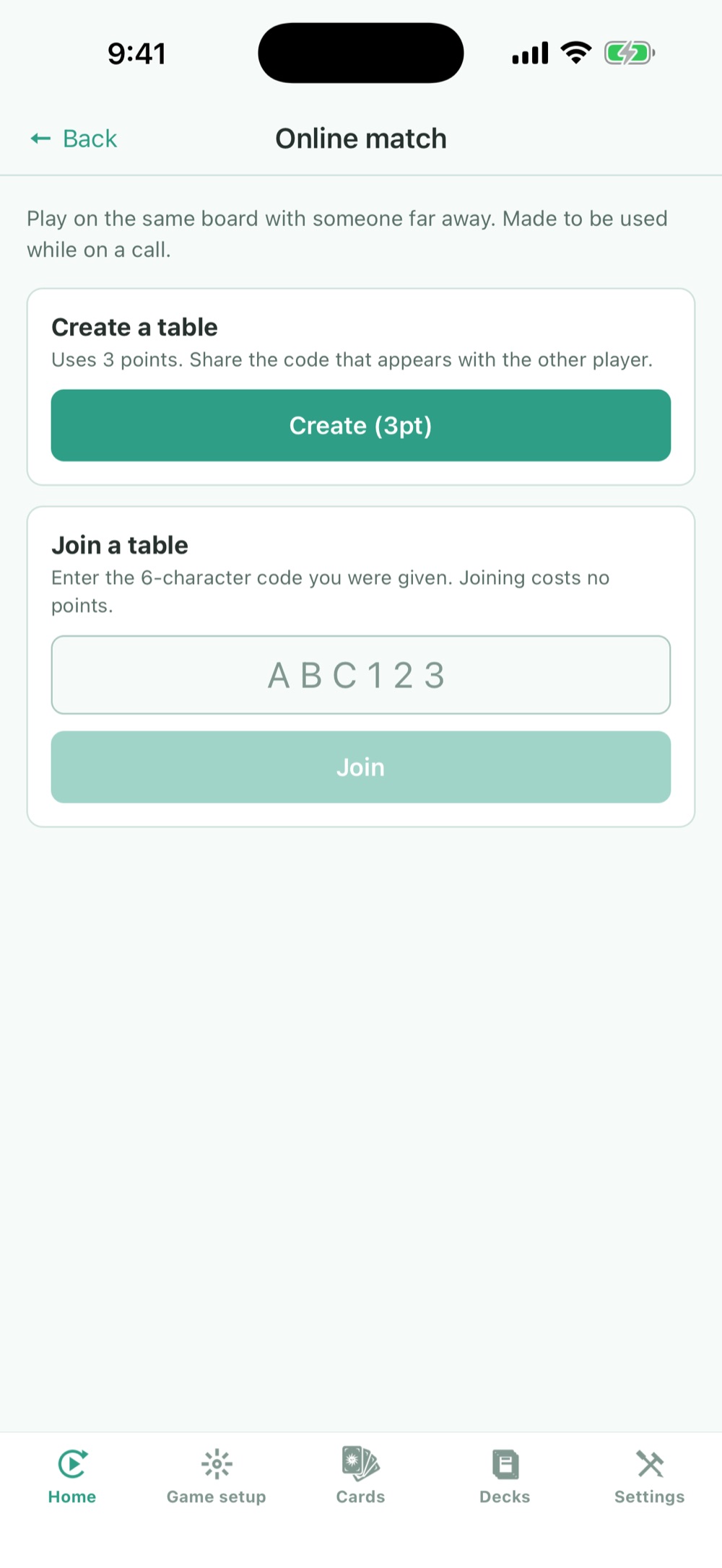
Tap an image to enlarge it. The screens are demos for explanation.
| Person creating the table | Person joining |
|---|---|
| Open "Online match" | Open the same screen |
| Check the conditions on screen and tap "Create a table" | Get the room code from your opponent |
| Tell your opponent the 6-character room code | Enter the code to join |
3. Pick decks and get ready
- Choose your deck. The lending side can turn on "Lend your decks".
- To borrow, choose a deck your opponent is lending.
- You can join a table even if your opponent uses a different game. In that case, each of you plays on your own game's board with your own deck. Read the message if one appears.
- When both players tap "I'm ready", the match screen opens.
Each player can use up to 3 decks at one table. To use more, create a new table.
4. Check what each side sees
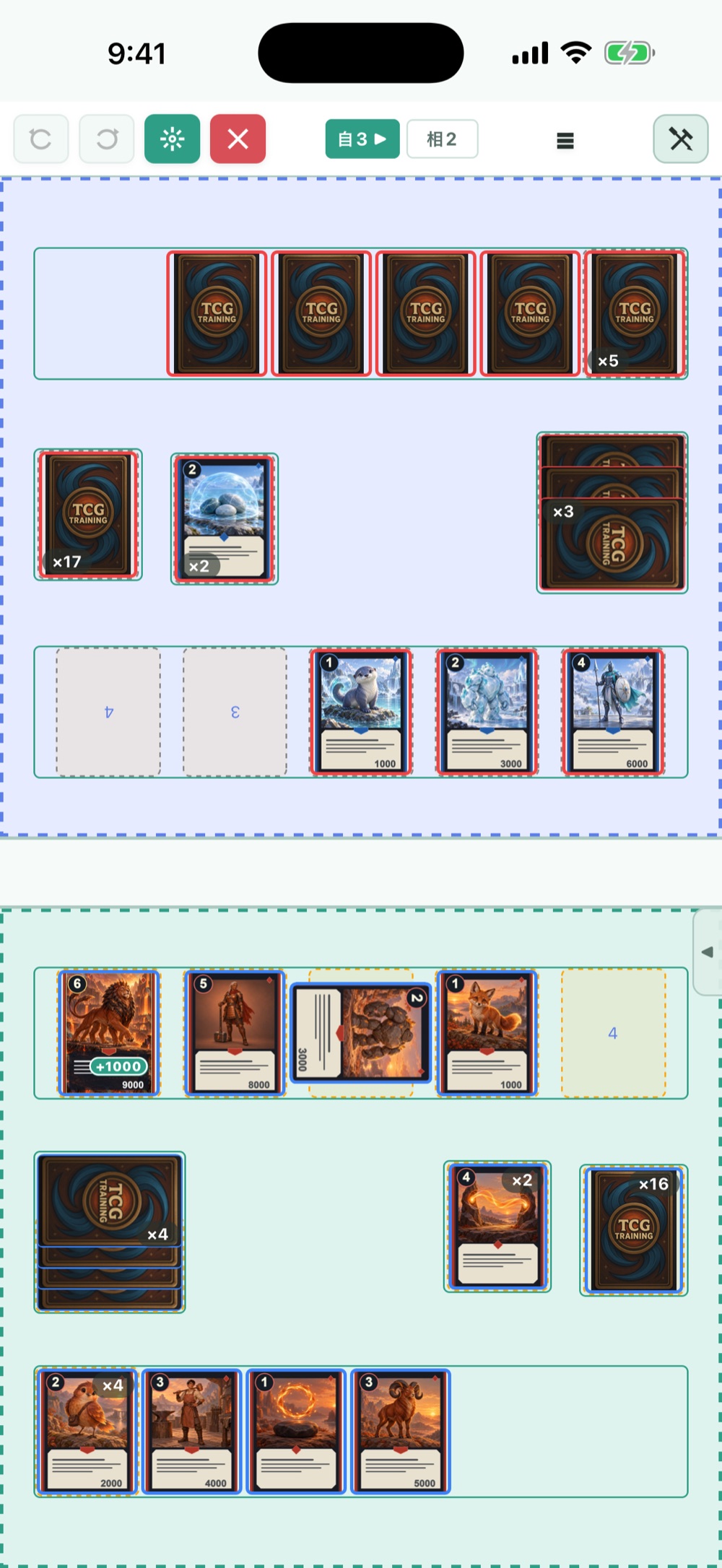
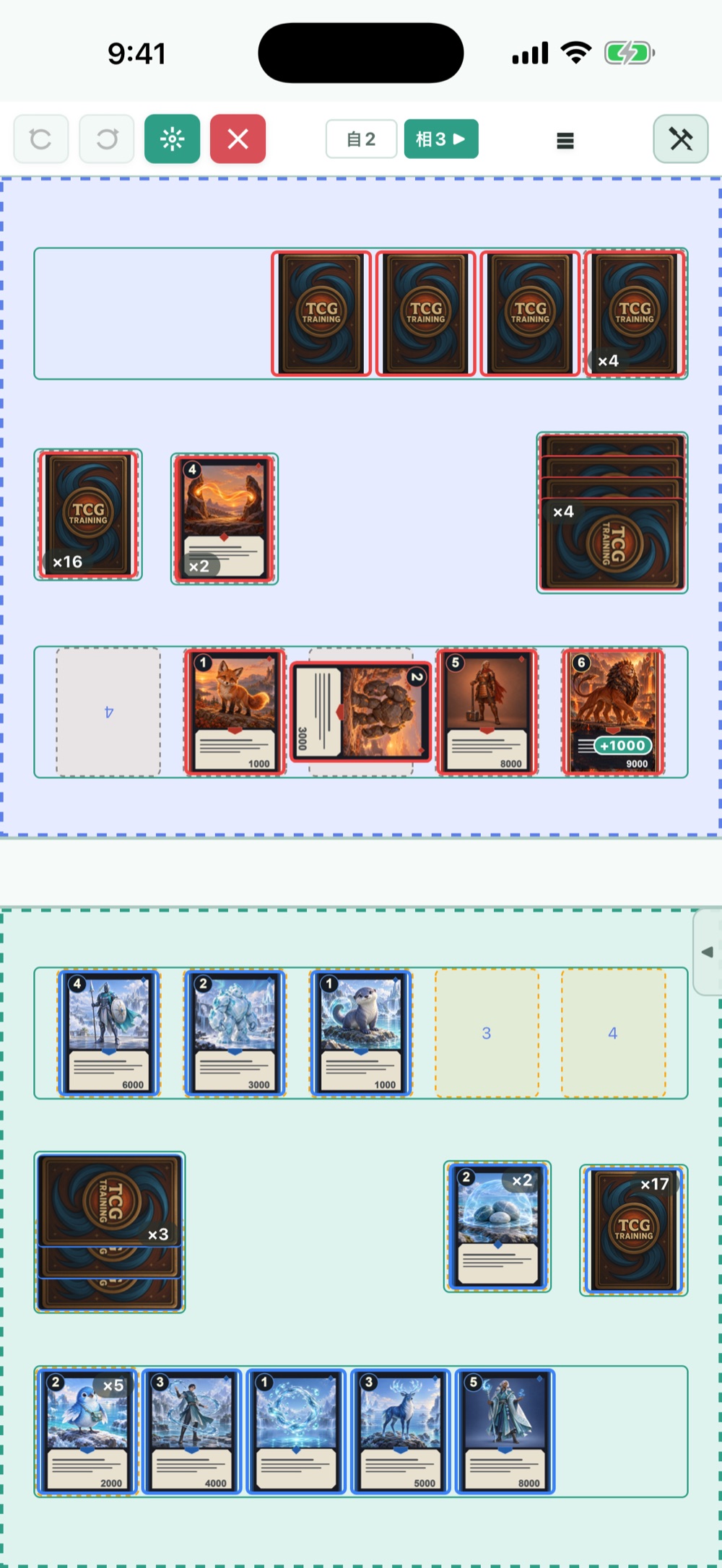
The same match seen by each player (screens shown in Japanese). Tap an image to enlarge it.
What is revealed, such as the hand, follows the board's settings. Check not only face up or face down but also the "What your opponent sees (online)" setting. For how to set it, see the advanced guide.
Move your own cards and check that they update on your opponent's side as you go. If the connection drops, check the connection status and the message on screen, and pause until you and your opponent are in sync.
Tap a card to choose  rotate or
 flip.
 "View" does not appear for your opponent's hidden deck or hand. Move cards on the board by dragging.
In games that count life as a number, you can also change your opponent's life (for play styles where the attacking side applies damage). When you do, your opponent is notified on their screen. Your opponent's actions are also shown to you in speech bubbles.
5. End the match
Read the confirmation and tap "Leave this table" to finish. Tables are for two players, so once it closes your opponent cannot continue at that table either.
Card images uploaded to the server for the match are deleted when the table closes. A table left open closes 3 hours after it was created.
To leave during a match, open the confirmation from  end at the top of the board. The × inside the log or tools panel only closes that panel.
For an overview of points and Premium, and how to buy, restore or cancel, see Pricing, points and Premium.