1. Pick decks and start
- On the Solo Play screen in Home, choose the game.
- Choose "Your deck" and "Opponent deck". You can pick the same deck for both.
- Choose who goes first and tap "Start Solo Play".
- Check that the deck and other piles are where you expect.
2. Reading the board
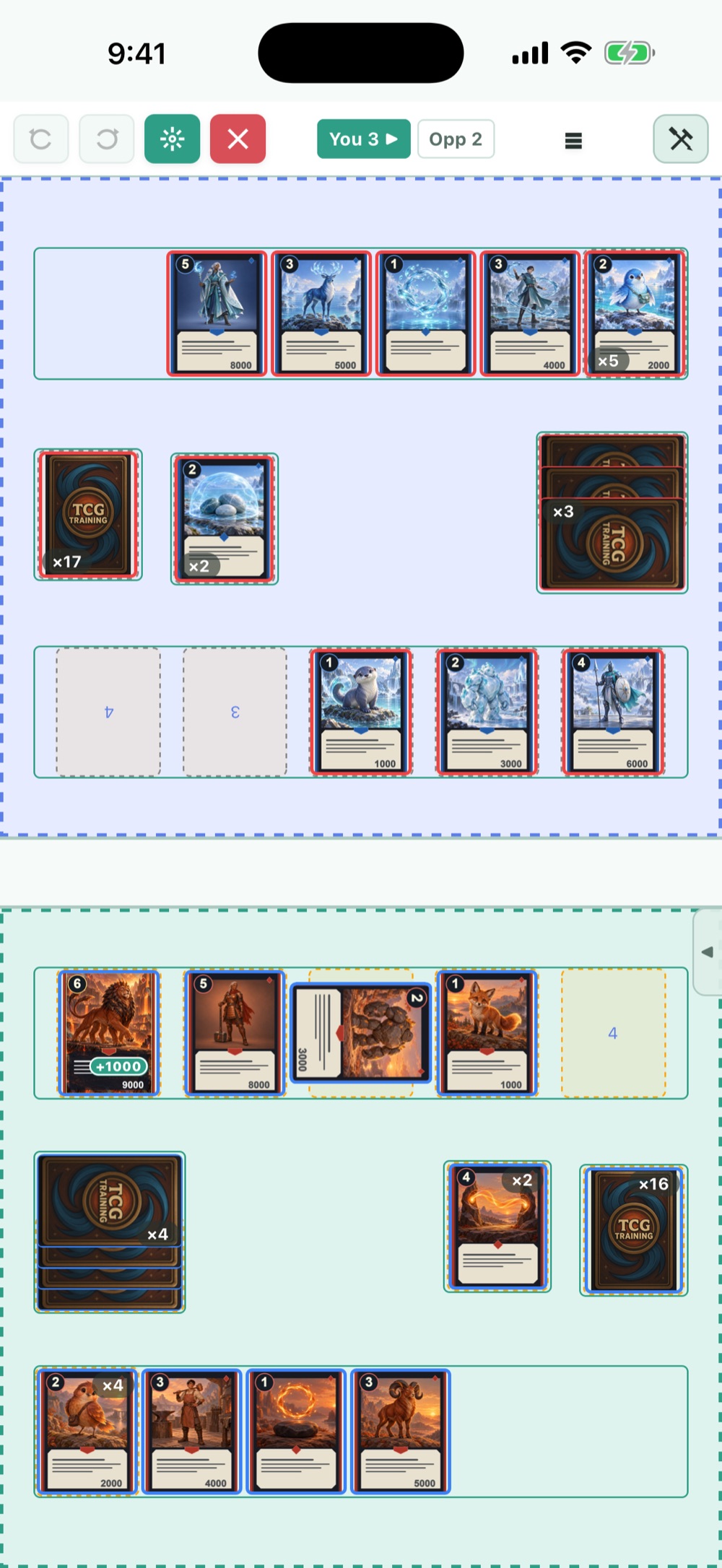
Tap an image to enlarge it. The screens are demos for explanation.
| Where | What it shows |
|---|---|
| Top | The opponent's side of the board |
| Middle | Shared zones, if you set any up |
| Bottom | Your side of the board |
| Top bar | Undo and redo, turn, end, tools and more |
Zone names, layout and slot counts depend on your game setup. Look for your own deck, hand and field rather than the positions in the screenshot.
To make zone names and borders easier to see, tap  "Display settings" at the top of the screen. This is separate from editing the board's rules.
3. Move some cards
| What you want to do | How |
|---|---|
| Move | Drag the card to the destination slot. Check that the destination is highlighted, then release |
| Flip face up or down | Tap the card, then tap  flip |
| Rotate | Tap the card, then tap  rotate |
| Look through a pile | Tap a card in the pile, then tap  "View" |
| See details | Long-press a face-up card to enlarge it. If the menu shows  "Details", you can open the details from there |
Try shuffling the deck, drawing into your hand, and playing a card from your hand to the field. Moving from the field to the discard works the same way. Depending on the destination's settings, the card may land face up or face down, or stack differently. In zones set to "Ask each time" for face or position, you are asked when you place a card.
After opening a pile: shuffle, flip and reorder
The list you open with "View" has actions for the whole pile and for single cards.
| Icon | Action | What happens |
|---|---|---|
 | Shuffle the pile | Shuffles the order of the cards in the zone you have open. |
| Flip every card | Flips each card in the pile. If face-up and face-down cards are mixed, each one is reversed. |
 | Flip the top 3 | Flips the top 3 cards of the pile. |
 | Flip the top 4 | Flips the top 4 cards of the pile. |
 | Flip the top 5 | Flips the top 5 cards of the pile. |
 | All face up | Turns every card in the pile face up. |
 | All face down | Turns every card in the pile face down. |
 | Up one | Moves that card up one place in the same pile. |
 | Down one | Moves that card down one place in the same pile. |
 | To the top | Moves that card to the top of the pile. |
 | To the bottom | Moves that card to the bottom of the pile. |
 | Move to another zone | Opens a screen to choose where that card goes. |
 | Drag to reorder | Drag the handle at the right end of a row to change the order. Hidden while filtering and in similar cases. |
4. Run the moves you use most
If quick actions are set up, open the panel with "◀" at the right edge of the screen and tap a button to run it. Close the panel with "▶". Check whether it targets you or the opponent before using it.
To make your own buttons, see the advanced settings and quick actions guide. If you set up automatic actions at the start of a turn, take care not to run the same thing again by hand.
The person who makes a quick action can choose its icon, such as a  draw picture or a shuffle picture. The picture alone does not decide what it does, so long-press the button to check its steps. Numbers and targets also depend on the setup.
5. Undo mistakes and advance turns
Use  undo at the top of the screen to take back the last move, and
 redo to replay a move you undid. The buttons are disabled when there is nothing to undo or redo. Solo Play keeps up to 30 moves of history. Tap the turn display (such as "You 3 ▶") to pass the turn; any automatic actions you set up then run.
Counters, markers and dice are under  "Tools" at the top right. Tap
 "Close" on the panel to return to the board. "Tools" also has the draw calculator and the "Probability read" (probability guide).
To look back over your moves, open the action log with "≡" at the top and tap an entry for details.
Long-press the turn display to open a menu for going back a turn, changing who goes first, or returning to setup. Going back a turn does not put the cards back where they were.
Counters, markers and dice
| Tool | How to use |
|---|---|
| Counters | From "Counters" in "Tools", drag "+1", "+1000" or "Custom" onto a card. Custom values can be negative. Tap a placed number to change, move or remove it. |
| Markers | Drag a colored mark onto a card to flag its state. Tap to remove it. |
| Dice | Choose the number of sides (d4 to d100) and how many dice (1 to 20), then roll. You see the total and, with two or more dice, each result. |
There is also a "Dice & Counters" screen you can use away from the board. Open it from "Dice" in Home to use dice, a coin, and named counters (starting with "Life"). "Reset all" sets every counter back to zero.
6. Suspend and resume
- Tap end at the top of the board and choose "Suspend & back".
- Choose the game from "Suspended games" in Home.
- Check that the board is as you left it, and carry on.
The board is saved automatically every time you move something. Up to 5 suspended games are kept. If you start a new one when you already have 5, you are asked whether to delete the oldest.
7. Counting life
For games that count life as a number, turn on life in the game setup and both players' life appears on the board. Tap it to open the adjust screen.
| What you want to do | How |
|---|---|
| Change by a set step | Tap a step button (top row subtracts, bottom row adds) |
| Change by any amount | Enter a number and tap "Subtract" or "Add" |
| Set the value directly | Enter a number and tap "Set to this" |
| Go back to the starting value | Tap "Reset to starting value" and confirm |
The starting value, display name and steps are set in "Life (numeric)" under Advanced in "Game setup". You can also choose them in the guided setup or when creating with AI. Whether the display sits on the left or right is chosen in the board's display settings.
8. Replay a game and try another line
Solo Play and online matches are recorded automatically, move by move. Choose one from "Game history" in Home to open a replay screen where you can only view the board.
| What you want to do | How |
|---|---|
| Step forward or back one move | Tap "▶" or "◀" at the top |
| Jump to any move | Move the slider, or tap a row in the "≡" action log |
| See whose turn it is | Check the label next to the move count, such as "You 3" or "Opp 3" |
| Try a different choice from that move | Tap "Continue from here" to start a new Solo Play from that board |
Online match histories can only be replayed; there is no "Continue from here". The opponent's hand and face-down cards stay hidden, just as during the match.
The free version keeps the latest 3 histories, and Premium keeps up to 100. Beyond that, the oldest are deleted first. Histories are stored on your device.
If it does not start properly
| Problem | What to check |
|---|---|
| You cannot pick a deck | The selected game, and whether the deck is saved |
| A pile does not appear on the board | Whether it has cards, where each pile starts, and the board's zones |
| A different board opens | The deck's own settings in its details, and the game's default design |