1. Dress up with sleeves and playmats
Put your favorite art on the back of your deck, or spread your game's world across the board. Use your own images to give your usual Solo Play the look you like.
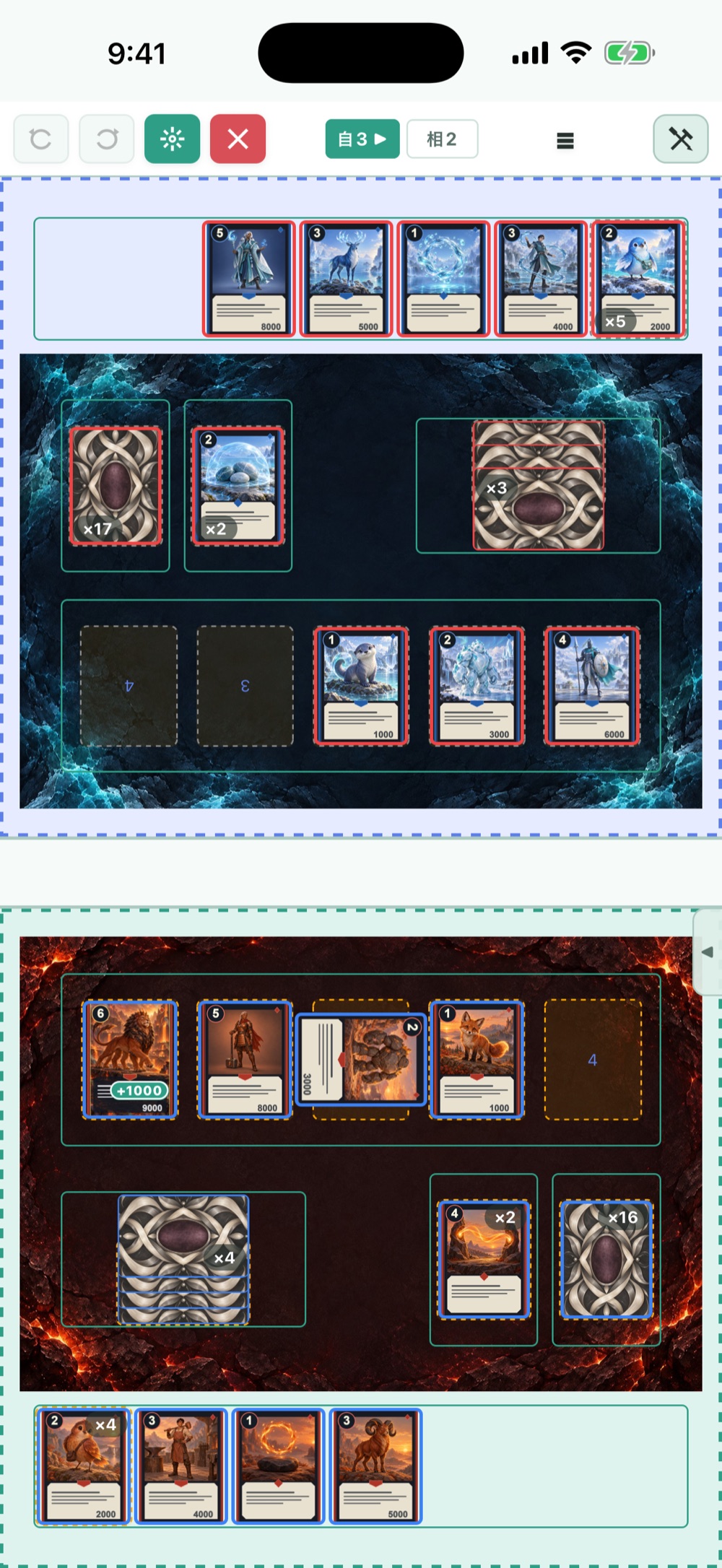
Tap an image to enlarge it. The screens are demos for explanation.
| What you can change | What you can set |
|---|---|
| Sleeve | The back of the cards. Set an image for the whole deck or per pile. |
| Playmat | The board background. Set images and opacity for your side and the opponent's side. |
This is not a feature for buying images; it lets you use your own images as decorations. You do not need the demo images shown here.
2. How to unlock and what is covered
Decorations are available by exchanging points, or while Premium is active. Before exchanging, check the target deck or board design and the points shown on screen.
| How to unlock | Period and scope |
|---|---|
| 30-day point exchange | Use decorations on the chosen target for 30 days. Extending before it expires adds to the time remaining. |
| Permanent point exchange | Use decorations on the chosen target with no time limit. |
| Premium | While active, use sleeves on every deck and playmats on every board design. |
You do not need to exchange again to swap images on the same target. Using decorations through Premium is separate from a "Permanent" point exchange. After Premium ends, you can use decorations according to any point-exchange rights left on each target.
Prices and terms for points and Premium are shown on the in-app purchase screens. Check the final price, points needed and period before buying or exchanging.
3. Set a sleeve
- From the deck list, open the deck's "Details" and choose "Sleeve".
- Check whether it is unlocked. If not, check the target and period and exchange points, or check your Premium status.
- Choose "Whole deck" or a specific pile to apply it to.
- Pick an image from your photo library with "Choose image", and set the crop.
- Start a Solo Play with the deck and check how face-down cards look.
Cards in piles without their own image use the whole-deck sleeve. If the whole deck has none either, the default back is used.
4. Set a playmat
- Open the game's edit screen and choose "Playmat" on the board design you want. Save a new board first.
- Check the target board design and whether it is unlocked.
- Choose your side or the opponent's side, and set an image from your photo library with "Choose image".
- Adjust the opacity and "Fit" while watching the preview.
- Pick that board design in a deck, start a Solo Play, and check that cards and numbers are easy to read.
If you do not set an image for the opponent's side, your side's image is used. Fit and position are shared by both sides.
| Setting | When to use it |
|---|---|
| Opacity | Lower it when the background makes text or cards hard to read. Adjustable for each side. |
| Fill the table | Fills the table with the image. Parts that overflow are cut off. |
| Keep ratio | Fits the whole image. There may be empty margins. |
| Position | With "Keep ratio", choose top, center or bottom. |
To line up card zones with frames printed in the image, choose "Keep ratio" and set the zones' reference to "Playmat" in the board design. Zones you want outside the image, such as the hand, can stay on "Table". See the advanced settings guide for details.
5. Change, remove or extend
Swap the image with "Change image", or remove it with "Remove". Removing a per-pile sleeve falls back to the whole-deck setting, and removing the opponent's playmat uses your side's image.
The images you set are kept even after the period ends. Once decorations are available again, your saved settings are used. To extend, check the target, points needed and the expiry date.
6. Choose colors for the whole app
Change the color scheme of the whole app with "Color theme" in Settings. This is separate from point exchanges for sleeves and playmats. Try picking a theme that keeps text and buttons easy to read against your backgrounds.
The  check mark in the theme list shows the theme you are using.
If a setting does not apply
| Problem | What to check |
|---|---|
| You cannot pick an image | Whether the target is saved, whether decorations are unlocked, and photo access permission. |
| A different sleeve appears | A per-pile setting takes priority over the whole-deck setting. Check what it is applied to. |
| A different background appears | Whether the board design the deck uses is the same one you decorated. |
| The edges of the image are cut off | Switch from "Fill the table" to "Keep ratio". |
| Frames and cards do not line up | Whether the zones' reference in the board design is "Table" or "Playmat". |
For an overview of points and Premium, and how to buy, restore or cancel, see Pricing, points and Premium.